
You type ping, four packets leave your computer, and none come back. Where did they go? To answer that, you need a clear picture of how a network really works: the two addresses every device has (IP and MAC), the two boxes that move data (the switch and the router), and the path a packet takes from your laptop to a server on the internet. This tutorial builds that picture step by step and checks every idea with real, read-only Linux commands.
Part of the Networking for Beginners series. This article is the full written version of lesson 1 of the Bigland Network video course. The command outputs were captured on an AlmaLinux 9 machine as a normal user. Every IP and MAC address shown is an example value: the real addresses were replaced with the example LAN 192.168.10.0/24, the documentation ranges 192.0.2.0/24, 198.51.100.0/24 and 203.0.113.0/24, and the documentation MAC range 00:00:5E:00:53:xx. Your own addresses will differ.
Contents
- 1. What a network is: devices, links and the LAN
- 2. The IP address: where a device is
- 3. The MAC address: which network card it is
- 4. See your IP and MAC address
- 5. How a switch works
- 6. ARP: from an IP address to a MAC address
- 7. The router and the default gateway
- 8. Same network or through the router? (ip route)
- 9. The path of a packet, hop by hop
- 10. Test each hop with ping
- 11. A troubleshooting order that always works
- 12. Common mistakes
- 13. Best practices
- 14. Practice (with answers)
- 15. Cheat sheet
1. What a network is: devices, links and the LAN
A network is simply a group of devices that can send data to each other. In a small office in Chicago, Emily’s laptop, Michael’s PC, Sarah’s PC and a phone are all connected, by cable or Wi-Fi, to one box in the middle: a switch (on Wi-Fi, the access point plays the same role). The devices and the links between them, in one place, form a local area network, or LAN.
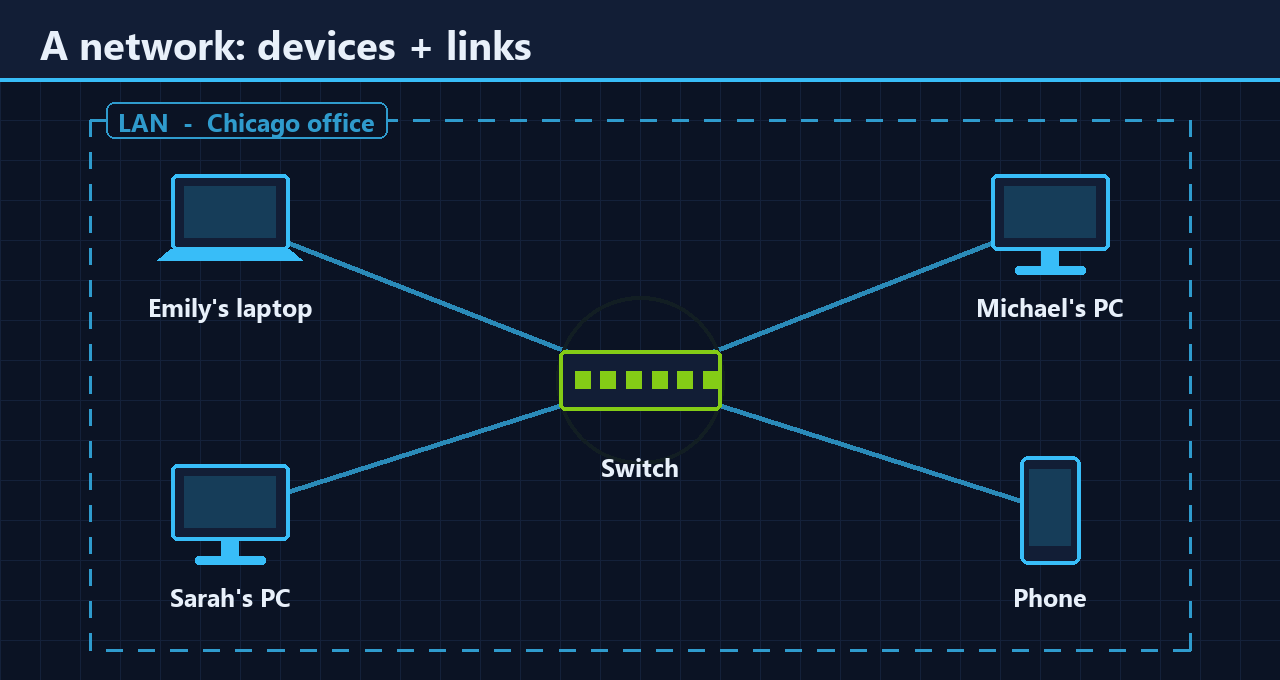
Inside the LAN, devices talk to each other through the switch. To reach anything outside the LAN, such as a website, they need a router (section 7).
2. The IP address: where a device is
To send anything, a device needs an address. The IP address (here IPv4) works like a postal address. Emily’s laptop has 192.168.10.25: four numbers from 0 to 255, separated by dots. Each number is one byte (8 bits), so an IPv4 address is 32 bits long.
| Decimal | 192 | 168 | 10 | 25 |
|---|---|---|---|---|
| Binary | 11000000 |
10101000 |
00001010 |
00011001 |
An IP address has two parts:
- The network part names the network, like the street. With the common
/24mask, it is the first three numbers:192.168.10. - The host part names the device on that network, like the house number:
25.
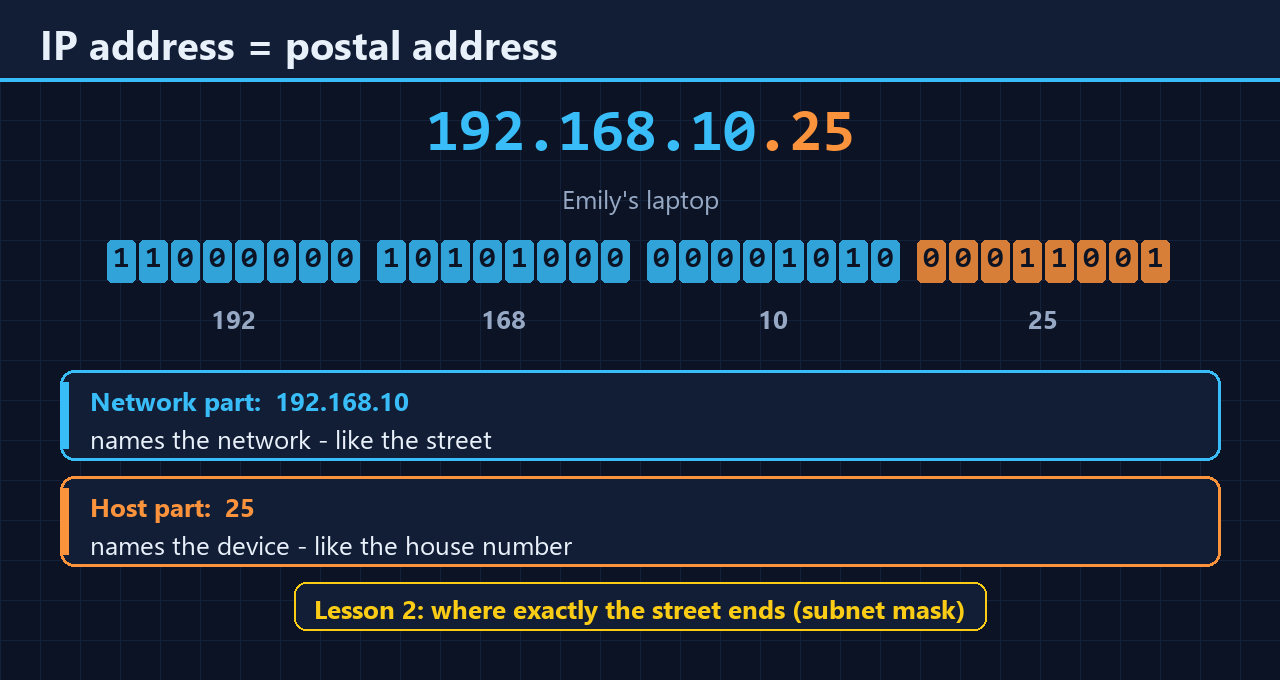
Every device on the same LAN shares the same network part and has its own host part. Where exactly the network part ends is decided by the subnet mask (the /24), which is the topic of the next lesson.
Addresses that start with 10., 172.16. to 172.31. and 192.168. are private: they are used inside LANs and are not routed on the internet. Your router gets a public address from your internet provider.
3. The MAC address: which network card it is
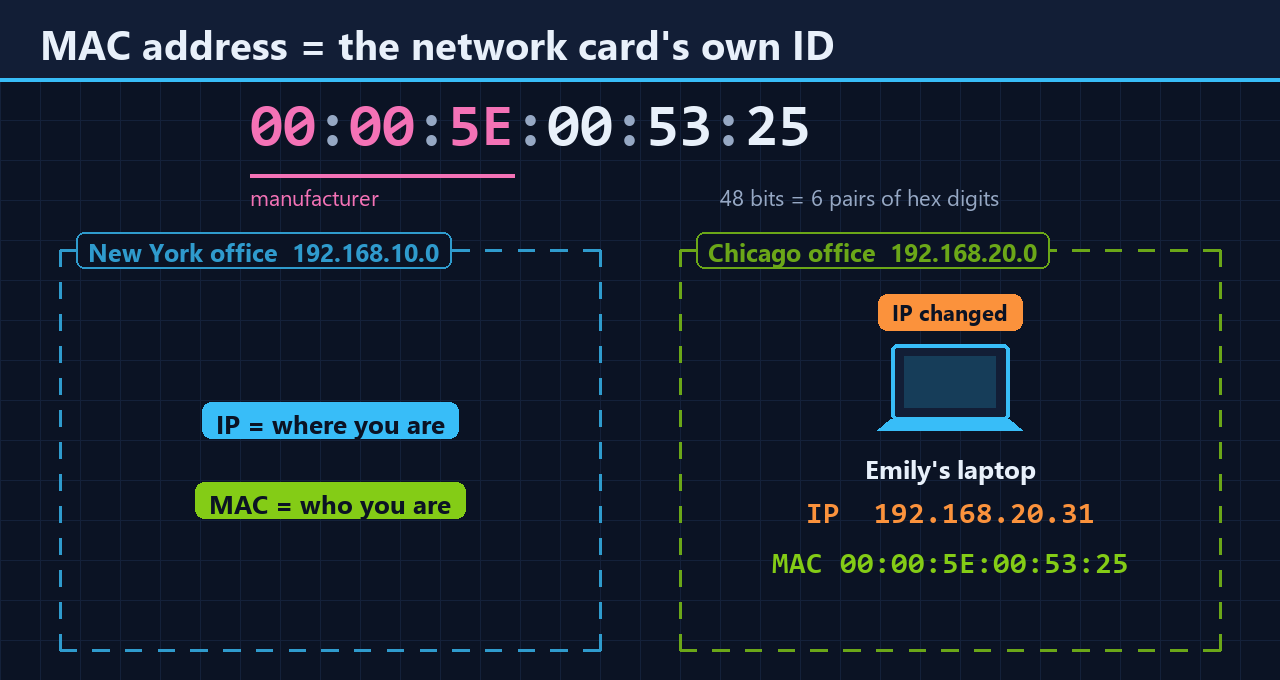
Every network card (Ethernet or Wi-Fi) also has a MAC address, assigned by its manufacturer. It is 48 bits long, written as six pairs of hexadecimal digits, for example 00:00:5E:00:53:25. The first half (the first three pairs) usually identifies the manufacturer; the second half is the card’s own number.
The difference with the IP address is easiest to see when a device moves. When Emily carries her laptop from the New York office (network 192.168.10.0) to the Chicago office (network 192.168.20.0), her IP address changes, because she is now on a different street. Her MAC address stays the same, because it belongs to the card.
| IP address | MAC address | |
|---|---|---|
| Says | where the device is | which network card it is |
| Length | 32 bits (IPv4) | 48 bits |
| Written as | 192.168.10.25 |
00:00:5E:00:53:25 |
| Given by | the network (DHCP or by hand) | the manufacturer |
| Changes when you move? | yes | no |
| Used by | routers, end to end | switches, inside one LAN |
Note: phones and recent laptops often use a random MAC address per Wi-Fi network for privacy, so the “never changes” rule is about the card’s built-in address.
4. See your IP and MAC address
On Linux, the ip command shows both. The -br (brief) option prints one line per network card. Here the card is called ens160; yours may be eth0, enp0s3 or wlan0.
$ ip -br address show ens160
ens160           UP             192.168.10.25/24 fe80::200:5eff:fe00:5325/64

$ ip -br link show ens160
ens160           UP             00:00:5e:00:53:25 <BROADCAST,MULTICAST,UP,LOWER_UP>
ip -br addressshows the IPv4 address with its mask (192.168.10.25/24) and an IPv6 link-local address (starting withfe80::).ip -br linkshows the MAC address of the same card, and its state (UP).- Without
show ens160, the commands list every card, includinglo, the loopback (127.0.0.1), which only talks to the machine itself.
On Windows, ipconfig /all shows both (the MAC address is called “Physical Address”). On macOS, use ifconfig en0 (the MAC address is the “ether” line).
Privacy tip: never post your real addresses online. Replace them before you share output, as this article does.
5. How a switch works
A switch connects the devices of one LAN and moves frames (the unit of data inside a LAN) between them, using MAC addresses. It learns where every device is by itself:
- When a frame arrives, the switch writes the sender’s MAC address and the port it came from into its MAC address table.
- It looks up the destination MAC address in that table. If it is known, the frame goes out of that one port only.
- If the destination is not in the table yet, the switch sends the frame out of every other port once (this is called flooding), and learns the right port from the reply.
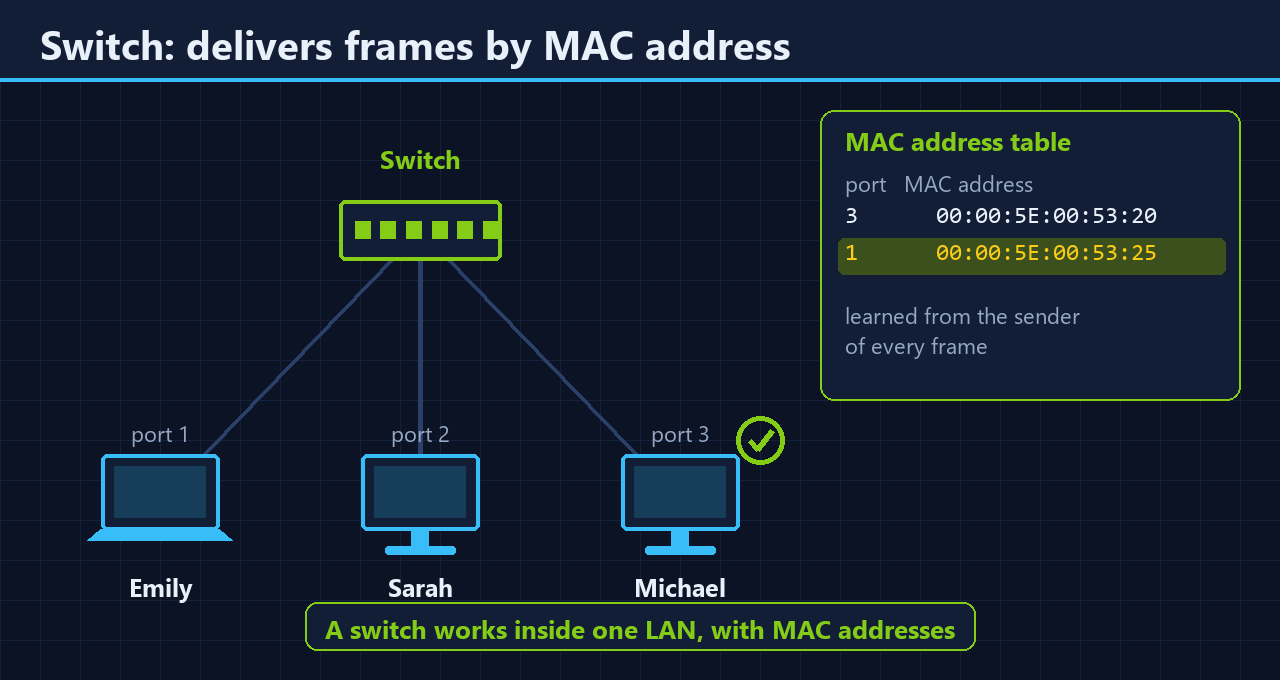
Because a switch only looks at MAC addresses, it never leaves the LAN. Connecting you to other networks is the router’s job.
6. ARP: from an IP address to a MAC address
Applications use IP addresses, but on the LAN the frame needs a destination MAC address. Emily’s laptop knows Michael’s IP address, 192.168.10.20. How does it find his MAC address? It asks with ARP, the Address Resolution Protocol:
- The laptop sends a broadcast (destination MAC
ff:ff:ff:ff:ff:ff, received by every device on the LAN): “Who has 192.168.10.20?” - Only Michael’s PC answers, directly to Emily: “192.168.10.20 is at 00:00:5E:00:53:20.”
- The laptop saves the answer in its neighbor table (the ARP cache), so it does not ask again for every packet.
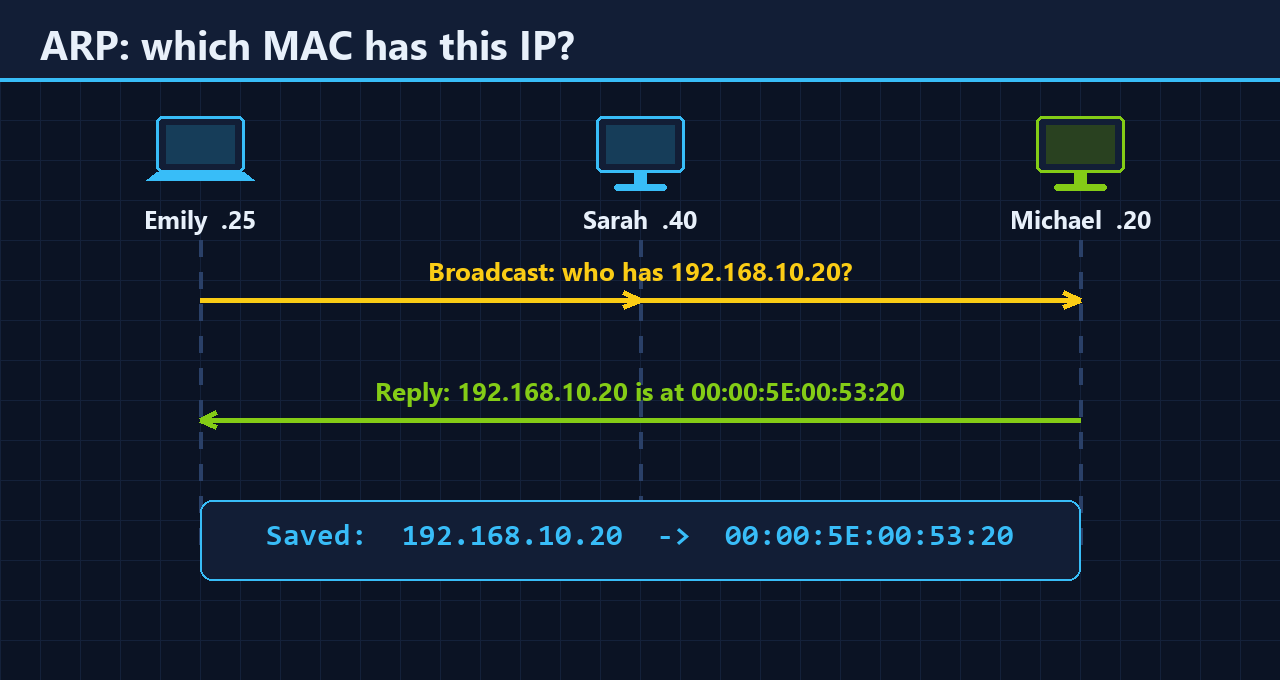
On Linux, ip neigh shows that table:
$ ip neigh show dev ens160
192.168.10.254 lladdr 00:00:5e:00:53:fe STALE
192.168.10.20 lladdr 00:00:5e:00:53:20 REACHABLE
192.168.10.1 lladdr 00:00:5e:00:53:01 REACHABLE- Each line is an IP address, the MAC address that answered (
lladdr, link-layer address) and a state. REACHABLE: confirmed recently.STALE: still remembered, but it will be checked again before it is trusted. You may also seeDELAY,PROBEorFAILED(nobody answered).- Here
.1is the router,.20is another computer and.254is another device of the LAN.
On Windows, the same table is shown by arp -a.
7. The router and the default gateway
A switch stays inside one network. To leave it, you need a router: a device that connects different networks and forwards packets between them using IP addresses. The office router has one leg in the LAN, with the address 192.168.10.1, and one leg toward the internet provider, with a public address, here 203.0.113.7.
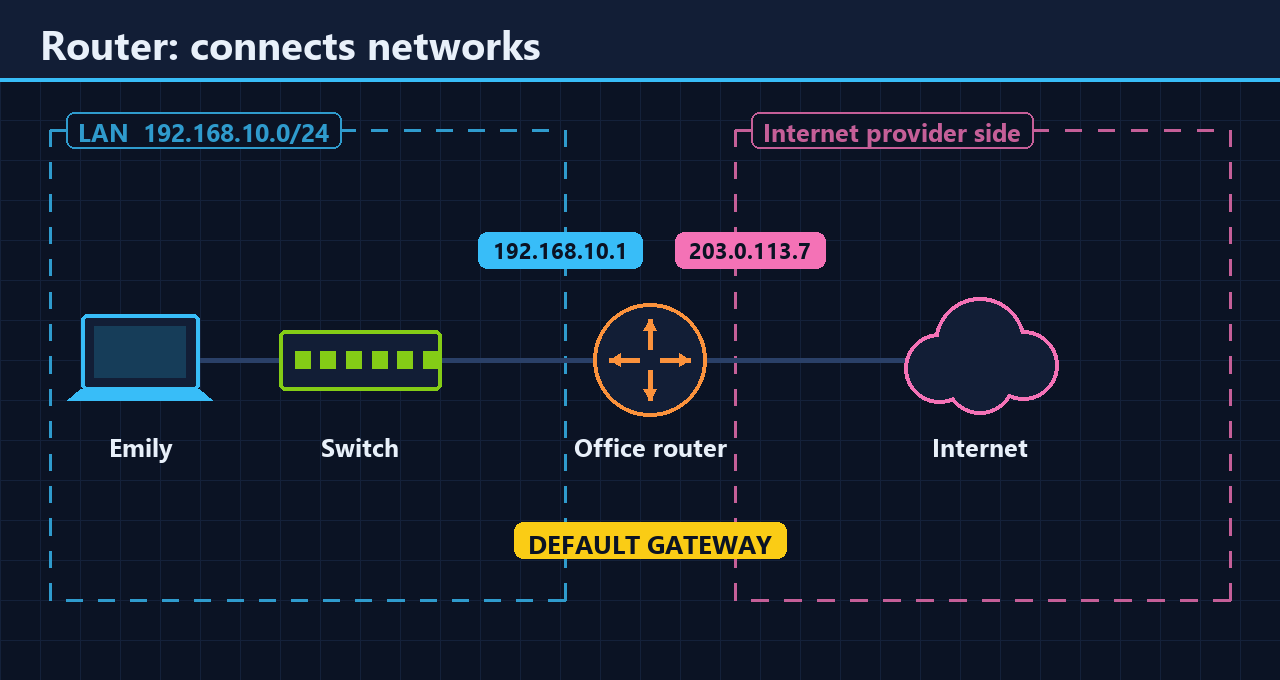
For every device in the LAN, this router is the default gateway: the door to all other networks. A home “router” box usually combines a router, a switch, a Wi-Fi access point, a DHCP server and NAT in one case.
8. Same network or through the router? (ip route)
Before every packet, a computer asks one question: is the destination on my network?
- Yes (same network part): deliver it directly, through the switch, after an ARP lookup of the destination’s MAC address.
- No (another network): send it to the default gateway (an ARP lookup of the router’s MAC address), and let the router take it from there.
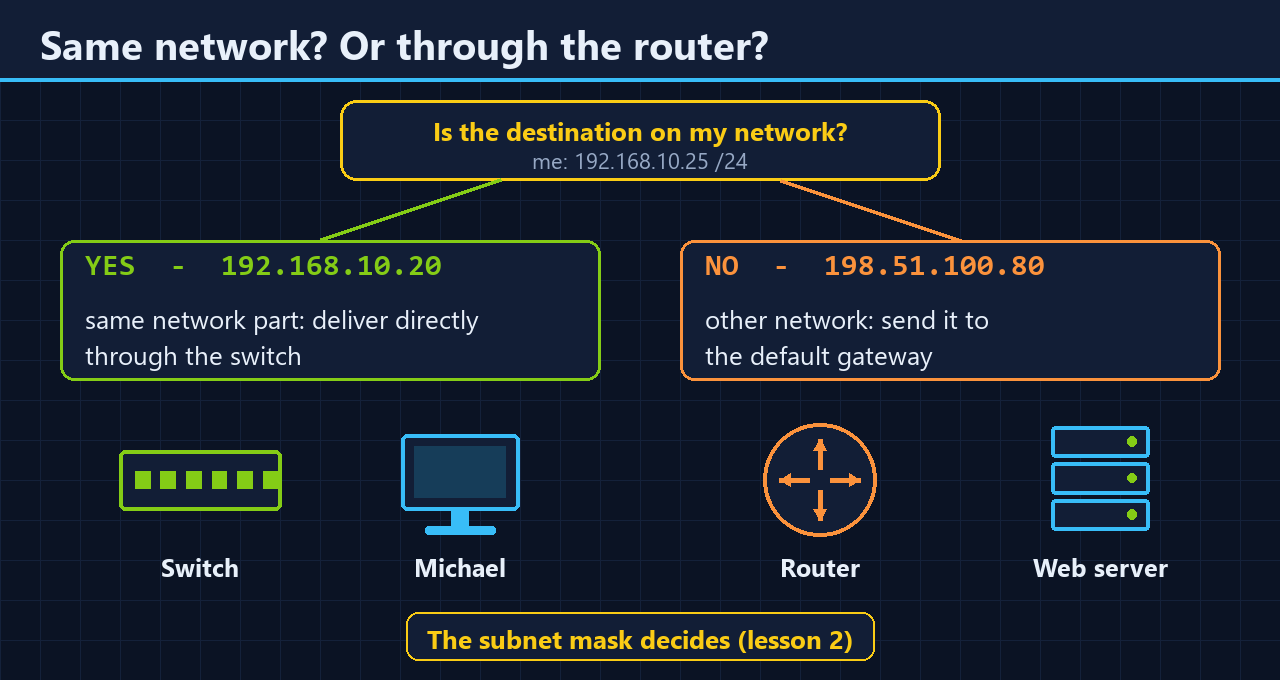
The routing table, shown by ip route, holds that decision:
$ ip route show dev ens160
default via 192.168.10.1 proto dhcp src 192.168.10.25 metric 100
192.168.10.0/24 proto kernel scope link src 192.168.10.25 metric 100
192.168.10.0/24 ... scope link: this network is directly connected, so its addresses are delivered without the router.default via 192.168.10.1: everything else goes to the gateway192.168.10.1.proto dhcp: the gateway was given automatically by DHCP (lesson 6).srcis the address this machine uses as sender.metricis the priority when several routes match (lower wins).
You can even ask Linux which way one packet would go with ip route get:
$ ip route get 192.168.10.20
192.168.10.20 dev ens160 src 192.168.10.25 uid 1000
    cache

$ ip route get 192.0.2.10
192.0.2.10 via 192.168.10.1 dev ens160 src 192.168.10.25 uid 1000
    cache
The neighbor 192.168.10.20 has no via: it is delivered directly. 192.0.2.10 goes via 192.168.10.1: through the router. Same machine, two destinations, two different paths. (uid 1000 is simply the user who asked.)
9. The path of a packet, hop by hop
Now follow one packet all the way. Emily opens a web page on a server at 198.51.100.80. The packet leaves her laptop, crosses the switch and reaches the office router. The router sends it to the internet provider. From there, routers across the internet pass it along, hop by hop; each router only chooses the next step, until the packet reaches the web server. The answer travels back, often in a fraction of a second.
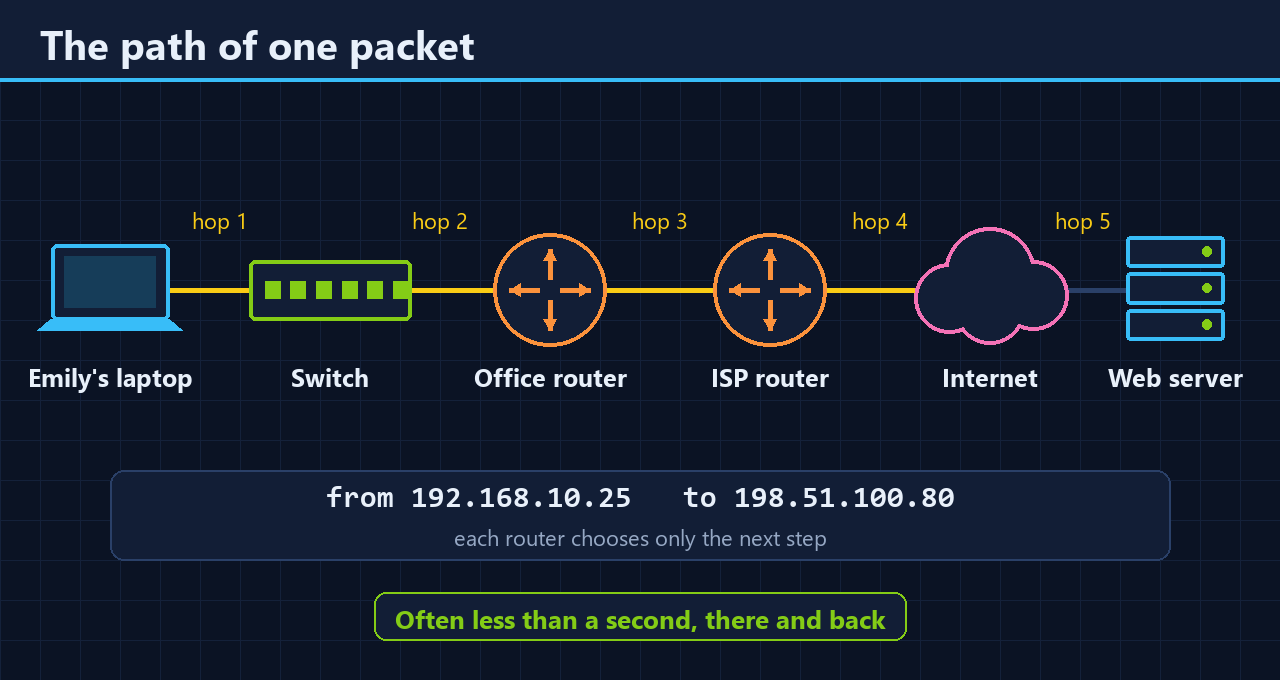
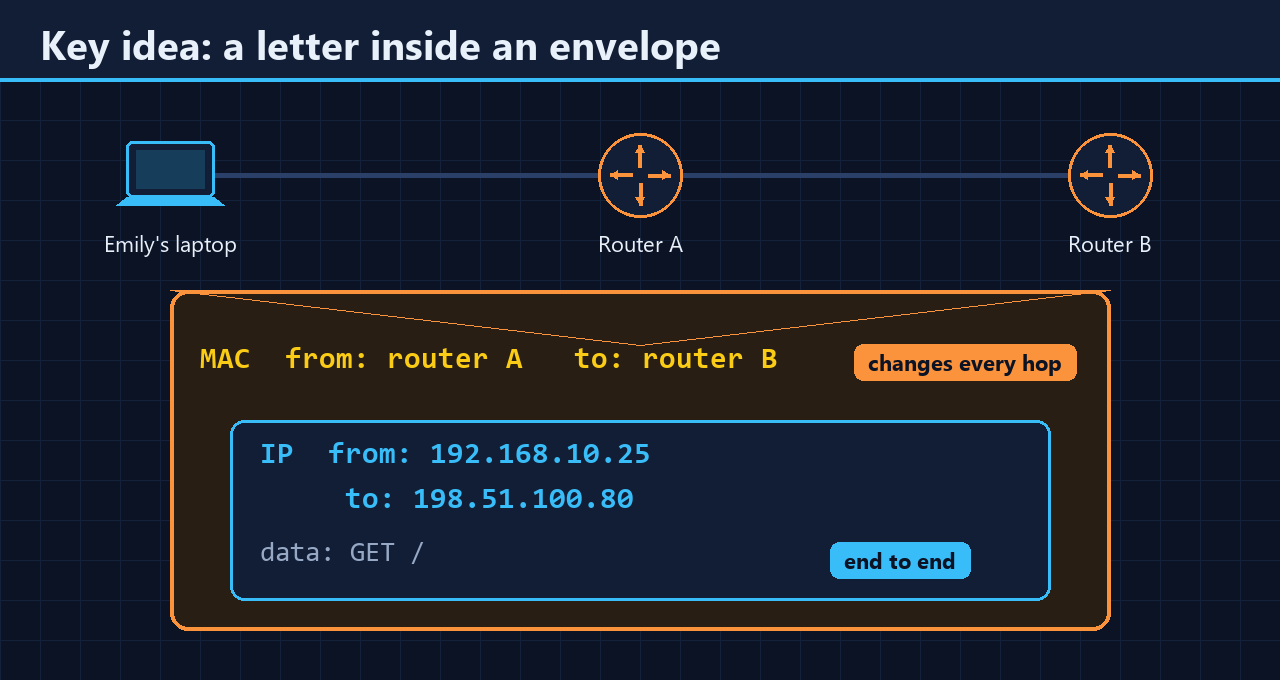
The key idea: a letter inside an envelope
Think of a letter inside an envelope:
- The letter is the IP packet. It carries the IP addresses: from Emily’s laptop (
192.168.10.25) to the web server (198.51.100.80). They travel end to end. - The envelope is the frame. It carries the MAC addresses, only for the current hop: from the laptop to router A.
- At router A, the envelope is thrown away and a new one is written for the next hop: from router A to router B. The MAC addresses change at every hop.
Two details: each router also lowers the packet’s TTL (time to live) by one, so a packet caught in a loop eventually disappears. And there is one exception to “the IP addresses never change”: NAT on an internet router rewrites the private source address into its public address (lesson 6).
10. Test each hop with ping
ping sends small ICMP echo requests and waits for the replies. To test the first hop (your card, the switch and the router), ping the gateway. -c 4 stops after four packets:
$ ping -c 4 192.168.10.1
PING 192.168.10.1 (192.168.10.1) 56(84) bytes of data.
64 bytes from 192.168.10.1: icmp_seq=1 ttl=128 time=1.31 ms
64 bytes from 192.168.10.1: icmp_seq=2 ttl=128 time=0.461 ms
64 bytes from 192.168.10.1: icmp_seq=3 ttl=128 time=0.498 ms
64 bytes from 192.168.10.1: icmp_seq=4 ttl=128 time=0.545 ms

--- 192.168.10.1 ping statistics ---
4 packets transmitted, 4 received, 0% packet loss, time 2997ms
rtt min/avg/max/mdev = 0.461/0.703/1.308/0.350 ms
Four sent, four received, 0% loss, about 0.7 ms on average: the LAN and the gateway work.
Now the mystery from the start of the lesson:
$ ping -c 4 -W 1 192.0.2.10
PING 192.0.2.10 (192.0.2.10) 56(84) bytes of data.

--- 192.0.2.10 ping statistics ---
4 packets transmitted, 0 received, 100% packet loss, time 2999ms
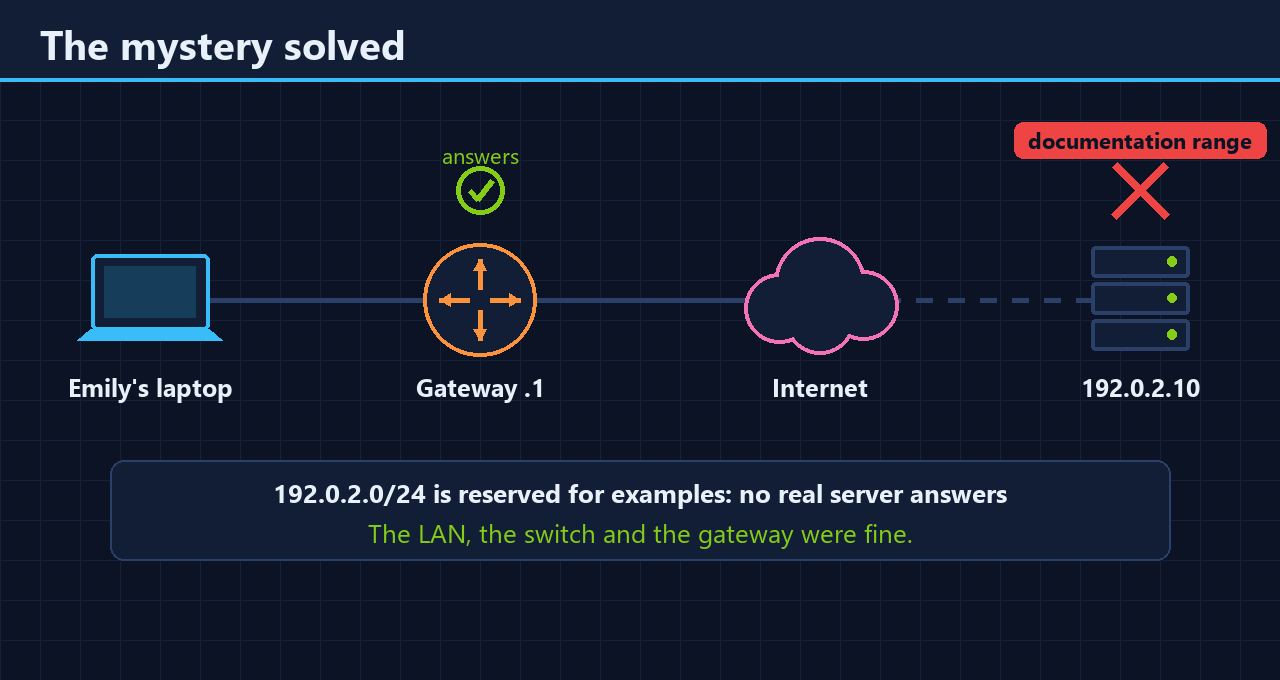
ip route get showed that 192.0.2.10 goes via the gateway, and the gateway answers, so the packets did leave the LAN. But 192.0.2.0/24 is one of the ranges reserved for documentation (with 198.51.100.0/24 and 203.0.113.0/24), so no real server ever answers. The problem was never in our LAN. (-W 1 waits at most one second for each reply.)
11. A troubleshooting order that always works
When a connection fails, test from the inside out. The first step that fails tells you where to look.
- Do I have an IP address?
ip address. No address (or a 169.254.x.x address) means the network card or DHCP is the problem. - Can I reach the gateway?
ip routeto find it, thenpingit. If it fails: cable, Wi-Fi, switch or a wrong address. - Can I reach the remote address?
pingthe server’s IP address. If the gateway works but this fails, the problem is beyond your router (or the server blocks ping). - Does the name work? If
ping 198.51.100.80works but a name likewww.example.comdoes not, it is DNS (lesson 5).
12. Common mistakes
| Mistake | Why it is wrong |
|---|---|
| Mixing up IP and MAC | The IP address is the location (it changes when you move); the MAC address is the network card. |
| “The switch connects me to the internet” | A switch only moves frames inside the LAN. Only the router leaves the LAN. |
| Wrong or missing default gateway | The LAN works, but nothing outside does. Check ip route for the default via line. |
| “Ping fails, so the machine is down” | Many firewalls simply block ping (ICMP). Test the service itself too. |
| Testing the far end first | Pinging a website first tells you little. Test your own address and the gateway before. |
| Posting real addresses online | Real public IP addresses and MAC addresses identify your network and devices. Replace them. |
13. Best practices
- Know your IP address and your gateway before something breaks:
ip -br addressandip route. - Test from the inside out, one hop at a time.
- Draw a small map of your network, even on paper: devices, switch, router and addresses.
- Use the documentation ranges (192.0.2.0/24, 198.51.100.0/24, 203.0.113.0/24) and
example.comin examples, scripts and tutorials. - Replace your real addresses before you share any command output.
14. Practice (with answers)
- Sarah’s PC is
192.168.10.40/24. Is192.168.10.99on the same network? - Which address changes at every hop, the IP or the MAC?
- The gateway answers ping, but a remote server does not. Is the problem inside your LAN?
- Which command shows the MAC address of the device that answered for
192.168.10.1? - In
ip route getoutput, what does a line withoutviamean?
Answers
- Yes. Both start with
192.168.10, and/24means the first three numbers are the network part, so Sarah’s PC delivers directly through the switch. - The MAC address: a new frame (envelope) is written for every hop. The IP addresses travel end to end, unless NAT is involved.
- No. The first hop works, so look beyond the gateway: the remote side, its firewall, or the path in between.
ip neigh(the neighbor table filled by ARP).- The destination is on a directly connected network: it is delivered without a router.
15. Cheat sheet
| Command | Shows |
|---|---|
ip -br address |
Your IP addresses (with the mask) |
ip -br link |
Your network cards and their MAC addresses |
ip neigh |
The neighbor table: IP to MAC (ARP) |
ip route |
The routing table and your default gateway |
ip route get ADDRESS |
The path one packet would take |
ping -c 4 ADDRESS |
Test one hop or one destination |
ipconfig /all, arp -a |
The same information on Windows |
Next in the series: IP addresses and subnet masks, and what /24 really means. Read ahead in IP Addresses, Subnet Masks and CIDR Explained.
More tutorials like this

Why Is My Website Slow? Measure DNS, TLS and Server Time with curl
Use curl to split a web request into DNS, connection, TLS, server and download time, read the numbers correctly and fix the slow part.

tcpdump Tutorial: Capture and Read Network Traffic on Linux
Capture and read network traffic with tcpdump: key options, filters, a real TCP handshake explained line by line, and pcap files for Wireshark.
TCP vs UDP and Network Ports Explained: Handshakes, Common Ports and How to Test Them
Understand ports, the TCP three-way handshake and when UDP is used, learn the common port numbers, and test whether a port is open from…
