
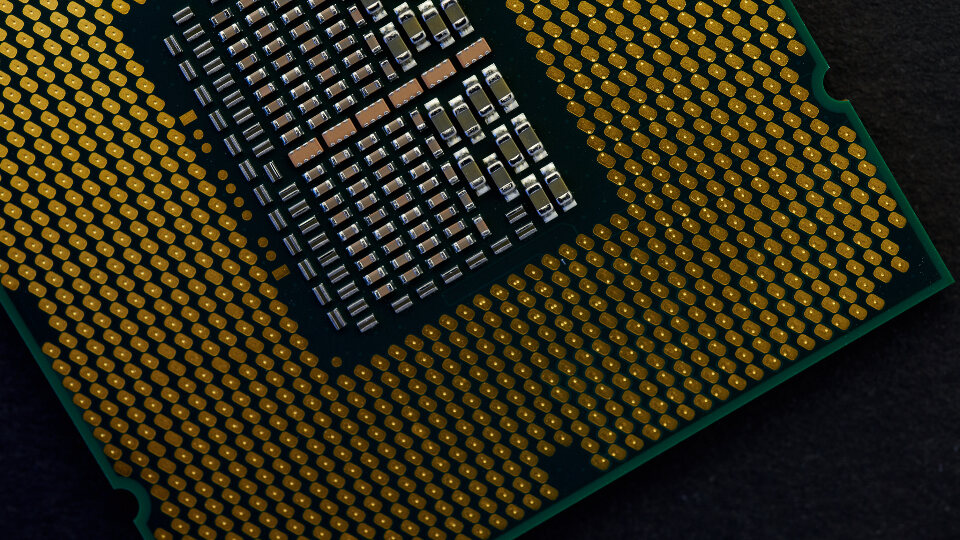
The processor, or CPU (central processing unit), is the part of a computer that actually runs programs. Every spec sheet shouts its numbers: gigahertz, cores, threads, cache. But a “4.5 GHz” chip is not simply faster than a “3.5 GHz” one, and a chip with more cores is not always the better choice. This guide explains what those numbers mean, how a CPU really works inside, and how to read the specifications of your own computer, with real output from a laptop and a server.
What a CPU does
A CPU does one basic thing, endlessly: it follows instructions. A program is just a long list of tiny instructions, such as “add these two numbers”, “load a value from memory”, or “jump to another place if this number is zero”. The CPU repeats a cycle for each one:
- Fetch: read the next instruction from memory.
- Decode: work out what it asks for.
- Execute: do it, using the arithmetic and logic units inside the chip.
- Write back: store the result.
Modern chips do this billions of times per second, and they overlap many instructions at once, like an assembly line, so several are in progress at any moment.
Clock speed (GHz): how fast the beat is
The CPU runs to the beat of an internal clock. A speed of 3 GHz means three billion beats per second. Each beat lets the chip advance its work by a step. Clock speed is easy to compare, which is why it was once the headline number, but it tells only part of the story.
What matters is how much work gets done per beat. This is called IPC (instructions per clock). A newer design with better IPC can beat an older one with a higher GHz number. Two further points:
- A chip’s advertised speed is often a base speed with a higher boost speed that it reaches for short periods when there is power and cooling to spare.
- Heat limits everything. When a chip gets too hot it slows itself down, which is called thermal throttling. A thin laptop may throttle in minutes under a heavy load, while the same chip in a desktop with a big cooler keeps its full speed.
Cores and threads: doing several things at once
A core is a complete processing unit. A chip with eight cores can run eight streams of instructions at the same time. This helps when the work can be split up, such as editing video, compiling code or running many programs together. It does not help a program that can only do one thing at a time, which uses just one core.
A thread is a stream of instructions a core can handle. Many chips use a technique (called Hyper-Threading by Intel and SMT in general) that lets one core manage two threads, filling gaps when one thread is waiting. It gives a useful gain, not a doubling. Operating systems usually show the number of logical processors, which counts threads.
You can see the numbers on your own PC. On Windows, in PowerShell:
Get-CimInstance Win32_Processor | Select-Object Name, NumberOfCores, NumberOfLogicalProcessors, MaxClockSpeed, L2CacheSize, L3CacheSize | Format-ListName : 13th Gen Intel(R) Core(TM) i7-13650HX
NumberOfCores : 14
NumberOfLogicalProcessors : 20
MaxClockSpeed : 2600
L2CacheSize : 11776
L3CacheSize : 24576This laptop chip has 14 cores but 20 logical processors, so some cores run two threads and some one. That is explained next. Cache sizes are reported in kilobytes, so the L3 cache here is about 24 MB.
Performance cores and efficiency cores
Many recent chips mix two kinds of core, a design often called hybrid. Performance cores are big and fast, for demanding work. Efficiency cores are small and use little power, for background tasks. The operating system assigns work to the right kind, which saves battery and heat. The 14-core chip above is built this way: six performance cores that run two threads each, plus eight efficiency cores with one thread each, which gives 20 threads in total.
Phone processors have used this idea for years, and it is now standard in laptops and desktops too.
Cache: the fast memory inside the chip
The CPU is extremely fast, and the main memory (RAM) is far slower by comparison. If the processor had to wait for RAM every time, it would spend most of its life idle. The solution is cache: a small amount of very fast memory built into the chip, which holds recently used data and the data likely to be needed next.
| Level | Size (typical) | Speed | Shared? |
|---|---|---|---|
| L1 | Tens of KB per core | Fastest | Private to each core |
| L2 | Hundreds of KB to a few MB per core | Very fast | Usually per core or small group |
| L3 | Several to many MB | Fast, slower than L2 | Shared by all cores |
It is a hierarchy: each step down is bigger but slower. Together with RAM and the drive, the full picture looks like this:
| Storage level | Relative size | Relative speed |
|---|---|---|
| Registers (inside the core) | Tiny | Instant |
| L1, L2, L3 cache | Kilobytes to megabytes | Extremely fast |
| RAM | Gigabytes | Fast, but many times slower than cache |
| SSD | Hundreds of gigabytes to terabytes | Thousands of times slower than cache |
| Hard disk | Terabytes | Slowest |
The exact ratios change with every generation, but the pattern never does: smaller and closer means faster. That is why a CPU with more cache can feel noticeably quicker at some jobs, such as games and databases, that jump around in memory.
Instruction sets: x86 and ARM
A CPU understands a specific “language” of instructions, called its instruction set architecture. Two families dominate:
- x86-64 (used by Intel and AMD) powers most desktops, laptops and servers. On Windows the architecture shows up as
AMD64. - ARM powers nearly all phones and tablets, and a growing number of laptops and servers. ARM designs are known for good performance per watt.
A program built for one family does not run natively on the other. Emulation and translation layers can bridge the gap, at some cost in speed. When you buy software or download a program, make sure it matches your architecture.
CPU, GPU and NPU: three kinds of processor
| Processor | Built for | Good at |
|---|---|---|
| CPU | General-purpose work | Running your operating system, programs and anything with lots of decisions |
| GPU (graphics) | Thousands of identical small calculations at once | Games, 3D, video effects, and much of machine learning |
| NPU (neural processing) | The maths used by AI models, at low power | On-device AI features such as background blur and voice effects |
A modern computer uses all of them. The CPU acts as the manager and hands suitable jobs to the GPU or NPU.
What the “nanometre” number means
Chips are described by a manufacturing process such as “5 nm” or “3 nm”. A smaller number generally means smaller transistors, which let a chip do more work for the same power. But today the figure is mostly a marketing name for a generation, not the literal size of any part, and you cannot compare numbers between different manufacturers. Judge a chip by tests and reviews, not by the nanometre figure.
Servers and virtual machines
On a rented virtual server you see only a slice of a big physical processor. This is the output of lscpu on a small cloud server running Linux:
Architecture:        x86_64
CPU(s):              2
Model name:          AMD EPYC 9J45 128-Core Processor
Thread(s) per core:  1
Core(s) per socket:  1
Socket(s):           2
Virtualization:      AMD-V
Virtualization type: full
L2 cache:            1 MiB (2 instances)
L3 cache:            32 MiB (2 instances)
The model name belongs to a very large server chip with 128 cores, but this virtual machine has been given just two virtual CPUs. Everything else on that physical chip serves other customers. That is why cloud plans are described by their number of vCPUs, and why one cloud server can feel slower than a laptop with a much smaller chip when many neighbours are busy.
How to choose: what matters for what you do
| You mostly… | Look for |
|---|---|
| Browse, write, watch video | Any recent mainstream chip is enough. Prioritise RAM (8 GB at the very least, 16 GB is comfortable) and an SSD. |
| Play games | Strong single-core speed and a good GPU. The GPU matters more than the CPU for most games. |
| Edit video, compile code, run virtual machines | More cores and threads, and plenty of RAM. |
| Work on battery | An efficient chip (efficiency cores, ARM) and good cooling. |
| Run a web server | Several cores, enough RAM, and fast storage. Often the drive or the network limits you before the CPU does. |
Before you upgrade, find out what is actually slow. Windows Task Manager (Ctrl+Shift+Esc) shows CPU, memory and disk use while you work. If the CPU is not near its limit when things feel slow, a faster CPU will not help. More RAM or an SSD often gives a bigger improvement than a new processor.
Myths worth dropping
- “More GHz is always faster.” Not across different designs. Compare real benchmarks.
- “More cores is always better.” Only if your software can use them.
- “A newer number means a better chip.” Names such as “i7” or “Ryzen 7” describe a tier, and the generation and model matter far more.
- “My laptop has the same chip as a desktop, so it is as fast.” A laptop’s heat and power limits usually lower its sustained speed.
Key takeaways
- A CPU runs instructions in a repeating fetch, decode, execute cycle, billions of times per second.
- Speed depends on clock rate and work per clock, as well as cooling.
- Cores let a chip do several things at once, and threads squeeze extra work out of each core.
- Cache hides the slowness of RAM, and a hierarchy of small fast memories feeds the processor.
- Mixing performance and efficiency cores saves power without losing speed when it is needed.
- GPUs and NPUs handle specialised work, so modern devices use all three processors.
- Check what limits your computer before you spend money on a faster processor.
More tutorials like this

Smart Home Devices Explained: Wi-Fi, Zigbee, Thread, Matter and Your Privacy
How smart home devices connect, what Wi-Fi, Zigbee, Thread and Matter mean, why local control matters, and how to keep your smart home secure…

How Robots Work: Sensors, Actuators and the Brain Behind Modern Robotics
How robots sense, think and act: the sensors, motors and controllers inside them, the software that ties it together, what AI adds, and why…

How AI Chatbots Work: Large Language Models Explained Without the Hype
How the large language models behind AI chatbots predict text token by token, how they are trained, why they sometimes make things up, and…
