
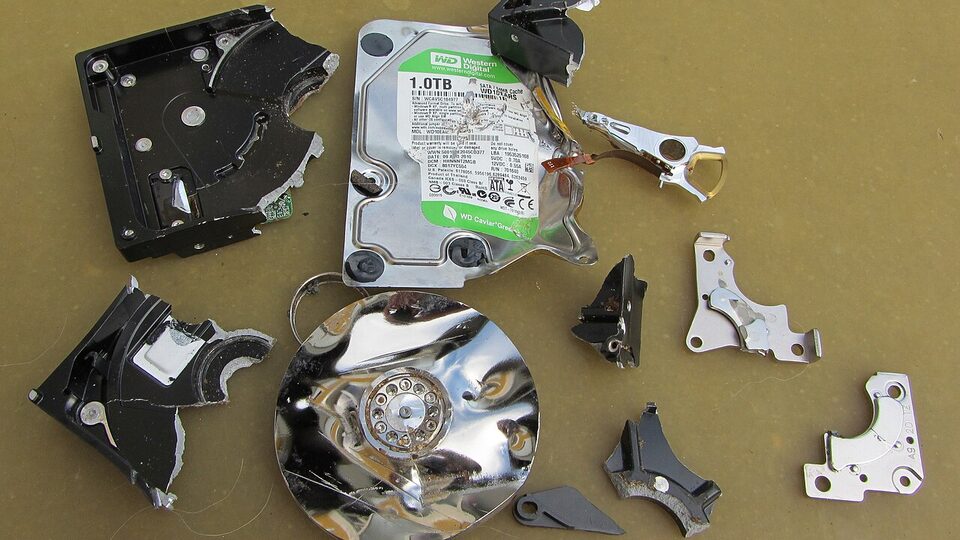
Swapping an old hard drive for an SSD is still the single upgrade that makes an older computer feel new: it boots in seconds, apps open instantly, and the machine goes quiet. But hard drives have not disappeared, and the SSD world is full of confusing labels: SATA, NVMe, M.2, TLC, QLC, TBW. This guide explains how each kind of drive stores your data, what the numbers on the box mean, how to see what is inside your own PC, and which drive to choose for what.
How a hard disk drive (HDD) works
A hard disk drive is a precise mechanical machine. Inside a sealed case:
- One or more platters, glass or aluminum disks coated with a magnetic layer, spin at a constant speed, usually 5,400 or 7,200 revolutions per minute (some server drives spin faster).
- A read/write head for each platter surface floats on a cushion of air (or helium in many large drives) a few nanometers above the surface. It writes data by flipping tiny magnetic regions and reads it by sensing them.
- An actuator arm swings the heads across the platters to the right track.
To read a file, the drive must move the arm to the right track (the seek time) and wait for the right part of the platter to spin under the head (the rotational latency). Together that takes several milliseconds per jump. When data is read in one long run, a modern hard drive manages roughly 100 to 250 MB per second. When the system needs thousands of small scattered pieces at once, which is exactly what happens when Windows boots or an app starts, the head spends most of its time moving instead of reading, and everything feels slow.
Because hard drives have moving parts, they are also sensitive to bumps and drops while running, and they wear mechanically over time.
How a solid-state drive (SSD) works
An SSD has no moving parts. It stores data in NAND flash memory chips, the same basic technology as USB sticks and memory cards, managed by a small processor called the controller.
Each flash memory cell stores data as a tiny electric charge trapped in an insulated layer. The amount of charge represents bits. How many bits each cell holds is one of the most important differences between SSDs:
| Type | Bits per cell | Typical use |
|---|---|---|
| SLC | 1 | Very fast and durable, expensive; used inside other drives as a cache |
| MLC | 2 | Older and professional drives |
| TLC | 3 | Most consumer SSDs today; good balance |
| QLC | 4 | Cheapest per terabyte; slower on long writes and less write endurance |
The controller does a lot of clever work you never see:
- Wear leveling: each flash cell can only be erased and rewritten a limited number of times, so the controller spreads writes across the whole drive.
- Garbage collection: flash can be written in small pages but only erased in large blocks, so the controller moves still-valid data around in the background to free up whole blocks.
- TRIM: the operating system tells the SSD which blocks belong to deleted files, so the drive can clean them up ahead of time. Windows, macOS and Linux do this automatically.
- Caching: many drives use a fast area (often part of the flash running in SLC mode, sometimes DRAM) to absorb bursts of writes. When you copy a very large file, a cheap drive may be fast at first and then slow down sharply once that cache is full.
SATA vs NVMe: the connection matters
An SSD is only as fast as the connection it uses:
- SATA SSDs use the same interface as hard drives. SATA III tops out at 6 Gbit/s, so these drives reach about 550 MB per second. They come as 2.5-inch drives (the size of a laptop hard drive) or as M.2 sticks.
- NVMe SSDs talk directly over PCI Express (PCIe), the same high-speed lanes graphics cards use. A PCIe 3.0 drive reaches about 3,500 MB per second, PCIe 4.0 about 7,000 MB per second, and PCIe 5.0 drives go beyond 10,000 MB per second.
Be careful with the name M.2: it describes the shape of the card (usually 22 mm wide and 80 mm long, written “2280”), not the speed. An M.2 drive can be either SATA or NVMe, and some laptop slots accept only one kind. Check your computer’s manual before buying.
The headline speeds are for large sequential files. For everyday responsiveness, what matters most is random access: an SSD finds any piece of data in microseconds instead of milliseconds. That is why even a basic SATA SSD feels dramatically faster than a hard drive, while the jump from a SATA SSD to an NVMe SSD is noticeable mainly when copying large files, loading big projects or games.
Which drive is in your computer?
On Windows, the quickest way is Task Manager: open the Performance tab and click each disk; it says SSD or HDD under the name. For more detail, open PowerShell and run:
Get-PhysicalDisk | Select-Object FriendlyName, MediaType, BusType, SizeHere is the real result on the laptop used to write this article (we rounded the size to gigabytes for readability):
FriendlyName                MediaType BusType SizeGB
------------                --------- ------- ------
NVMe PC SN740 NVMe WD 512GB SSD       NVMe       477
MediaType SSD and BusType NVMe mean a fast PCIe solid-state drive. A hard drive shows HDD and usually SATA. Notice the size: a drive sold as “512 GB” shows 477 here. Nothing is missing: manufacturers count a gigabyte as 1,000,000,000 bytes, while Windows counts in units of 1,073,741,824 bytes and still labels them GB.
On a Mac, open System Information (hold Option and click the Apple menu) and look under Storage or NVMExpress. On Linux, lsblk -d -o NAME,ROTA,SIZE,MODEL shows ROTA 0 for SSDs and 1 for spinning drives.
Lifespan: will an SSD wear out?
Yes, eventually, but for most people it is not a practical concern. SSD makers state endurance as TBW (terabytes written): a typical 1 TB consumer TLC drive is rated for around 600 TB written, often with a five-year warranty. A heavy home user might write 20 to 50 GB per day, which works out to decades at that rating. Video editors and database servers write far more, which is why they buy drives with higher endurance ratings.
Two real cautions:
- Deleted is really deleted. Because of TRIM, files deleted from an SSD are usually wiped by the drive soon after, so recovery tools that sometimes work on hard drives rarely work on SSDs. Backups matter even more.
- Do not use an SSD for long-term cold storage. Flash cells slowly lose their charge when the drive sits unpowered for a long time, especially when it is warm. For an archive you will put in a drawer for years, a hard drive (or better, two copies in different places) is the safer choice.
Hard drives, for their part, tend to fail mechanically and often without warning. Both types can be checked with their built-in health data (S.M.A.R.T.); free tools such as CrystalDiskInfo on Windows show it in plain words.
Which one should you buy?
- For the drive your system runs on: always an SSD. If your computer supports NVMe, choose NVMe; a mid-range TLC drive is the sweet spot.
- For an older laptop or desktop with a hard drive: a 2.5-inch SATA SSD is a cheap, easy upgrade, and cloning the old drive keeps all your files and programs.
- For large media libraries, backups and home servers (NAS): hard drives still win on price per terabyte, and they come in sizes above 20 TB.
- For gaming: an NVMe SSD shortens loading times; a QLC drive is fine for a game library because games are mostly read, not rewritten.
Key takeaways
- Hard drives store data magnetically on spinning platters; SSDs store it as charge in flash memory with no moving parts.
- The everyday speed difference comes from random access: microseconds for an SSD versus milliseconds for a hard drive.
- SATA SSDs top out around 550 MB/s; NVMe drives on PCIe are many times faster. M.2 is a shape, not a speed.
- Check your drive with Task Manager or
Get-PhysicalDisk; a “512 GB” drive shows about 477 GB in Windows. - SSDs for the system, hard drives for cheap bulk storage and archives, and backups for everything.
More tutorials like this
Smart Home Devices Explained: Wi-Fi, Zigbee, Thread, Matter and Your Privacy
How smart home devices connect, what Wi-Fi, Zigbee, Thread and Matter mean, why local control matters, and how to keep your smart home secure…
How a CPU Works: Cores, Threads, Cache and Why Clock Speed Isn’t Everything
What a CPU really does, what GHz, cores, threads and cache mean, how performance and efficiency cores differ, and how to read the specs…
How Robots Work: Sensors, Actuators and the Brain Behind Modern Robotics
How robots sense, think and act: the sensors, motors and controllers inside them, the software that ties it together, what AI adds, and why…
