
An IP address gets a packet to the right machine. A port number gets it to the right program on that machine. Between them sit two transport protocols, TCP and UDP, that decide how the data travels. Understanding them explains why a website loads but a game lags, what “connection refused” really means, and how to find out whether a firewall is blocking you. This tutorial covers ports, the TCP handshake, when UDP is used instead, the ports worth knowing, and how to test them from Linux and Windows.
IP address plus port: the socket
A single server can run a web server, a mail server and an SSH service at the same time. Each one listens on its own port number, from 0 to 65535. A connection is identified by four values, the source IP and port and the destination IP and port:
192.168.1.50:51514   ->   203.0.113.10:443
(your computer, a random port)   (the web server, port 443)
The server’s port is fixed and well known (443 for HTTPS). Your computer’s port is chosen at random for each connection from the ephemeral range. On Linux you can read it from the kernel:
$ cat /proc/sys/net/ipv4/ip_local_port_range
32768	60999
This is why you can open ten tabs to the same website: each connection uses a different source port, so each one is unique.
| Range | Name | Used for |
|---|---|---|
| 0 to 1023 | Well-known ports | Standard services (22, 80, 443). On Linux, only root can listen here |
| 1024 to 49151 | Registered ports | Applications such as databases (3306, 5432) and many web apps (8080) |
| 49152 to 65535 | Dynamic or private | Short-lived client ports (Linux uses 32768 to 60999 by default) |
TCP: reliable, ordered connections
TCP (Transmission Control Protocol) gives programs a reliable stream of bytes. It guarantees that data arrives, in order and without duplicates, or that you get an error. To do that it first sets up a connection.
The three-way handshake
- SYN: the client says “I want to connect” and proposes a starting sequence number.
- SYN-ACK: the server answers “agreed, here is mine” and acknowledges the client’s number.
- ACK: the client confirms. The connection is now established and data can flow.
After that TCP numbers every byte, the receiver acknowledges what it got, and the sender resends anything not acknowledged in time (retransmission). It also slows down when the network or the receiver is overloaded (flow and congestion control). When finished, each side sends a FIN to close its direction of the connection.
These steps cost a round trip before any data moves, and retransmissions can add delay on a poor link. That is the price of reliability, and it is the right choice for web pages, email, file transfer and databases.
TCP states you will see
| State | Meaning |
|---|---|
LISTEN |
A program is waiting for connections on this port |
SYN-SENT |
We sent a SYN and wait for an answer. Many of these means the remote end is not replying |
ESTABLISHED |
The connection is open and data can flow |
TIME-WAIT |
The connection closed normally and the system keeps the entry briefly. Many of them is usually harmless |
CLOSE-WAIT |
The other side closed but our program has not. A growing pile points to an application that forgets to close sockets |
List them on Linux with ss -tan, or count connections per state with ss -tan | awk 'NR>1 {print $1}' | sort | uniq -c.
UDP: fast and connectionless
UDP (User Datagram Protocol) is much simpler. It sends independent packets (datagrams) with no handshake, no acknowledgement, no resending and no guaranteed order. If a packet is lost, UDP does not notice. The application decides what to do.
That makes UDP ideal when speed matters more than perfection, or when each exchange is one small question and one small answer:
- DNS (port 53): a short query and answer. DNS switches to TCP for large answers.
- DHCP (67 and 68): a new computer has no address yet, so a connection cannot be set up.
- NTP (123): time synchronisation.
- Voice, video calls and games: a late packet is worthless, so it is better to skip it than to wait.
- QUIC and HTTP/3 (UDP 443): modern web traffic that builds its own reliability on top of UDP.
TCP and UDP side by side
| TCP | UDP | |
|---|---|---|
| Connection | Set up first (handshake) | None |
| Delivery guarantee | Yes, with retransmission | No |
| Order | Kept | Not guaranteed |
| Speed and overhead | Slower, more overhead | Faster, very little overhead |
| Typical use | Web, email, SSH, databases, file transfer | DNS, DHCP, streaming, VoIP, games, QUIC |
Ports worth knowing
| Port | Protocol | Service |
|---|---|---|
| 22 | TCP | SSH, secure remote login and SFTP |
| 25 | TCP | SMTP, mail delivery between servers |
| 53 | UDP and TCP | DNS |
| 67, 68 | UDP | DHCP server and client |
| 80 | TCP | HTTP |
| 123 | UDP | NTP |
| 143, 993 | TCP | IMAP, and IMAP over TLS |
| 443 | TCP (and UDP) | HTTPS (and HTTP/3) |
| 465, 587 | TCP | Mail submission (client to server) |
| 1433 | TCP | Microsoft SQL Server |
| 3306 | TCP | MySQL and MariaDB |
| 3389 | TCP | Remote Desktop (RDP) |
| 5432 | TCP | PostgreSQL |
Your system keeps a list of the standard names in /etc/services. Look one up with getent:
$ for s in ssh https smtp domain; do getent services $s; done
ssh                   22/tcp
https                 443/tcp
smtp                  25/tcp mail
domain                53/tcp
Testing a port from Linux
First, find out whether a program is listening on your own machine:
sudo ss -tulpn                 # all listening TCP and UDP ports and the owning program
sudo ss -ltnp 'sport = :443'   # who listens on 443?
Then test a remote port from the client side:
nc -zv example.com 443         # TCP connect test (package nmap-ncat on RHEL)
curl -sS -o /dev/null -w '%{http_code}\n' https://example.com
timeout 3 bash -c '</dev/tcp/example.com/443' && echo open || echo closed
The last line uses a Bash feature, so it works even when nc is not installed. UDP is harder to test, because with no handshake a silent port looks the same as an open one. nc -zvu host 53 only tells you what an ICMP error would reveal, so test UDP services with the real client (for example dig @server example.com for DNS).
Testing a port from Windows
Test-NetConnection example.com -Port 443

ComputerName     : example.com
RemotePort       : 443
TcpTestSucceeded : True
TcpTestSucceeded : True means the handshake completed. False means it was refused or timed out. The older telnet host port also works if the Telnet client is installed.
Reading the result: open, closed, filtered
| What you see | Meaning | Where to look |
|---|---|---|
| Connection succeeds | Open: the SYN was answered with a SYN-ACK | Nothing, unless the application itself misbehaves |
Connection refused |
Closed: the machine answered with a reset (RST), so nothing listens there | Is the service running? Is it bound to 127.0.0.1 only? (ss -tulpn) |
Connection timed out |
Filtered: the SYN got no reply, so a firewall silently drops it, or the address or route is wrong | Host firewall (firewall-cmd --list-all), cloud security group, router rules |
Immediate No route to host |
A device actively rejected the packet, or there is no route | Routing table and firewall reject rules |
The difference between “refused” and “timed out” is the single most useful clue in network troubleshooting. Refused means you reached the machine. Timed out means you probably did not. To see the packets themselves, read our tcpdump tutorial.
NAT and port forwarding in brief
A home or office router shares one public IP address among many private ones. It remembers which private address and port opened each outgoing connection, so replies find their way back. This is why inbound connections from the internet are blocked by default. Port forwarding tells the router “send anything arriving on public port 8080 to 192.168.1.50 port 80”. If you do this, expose only what you must, and keep the service updated. Do not forward database ports (1433, 3306, 5432) or Remote Desktop (3389) to the internet.
Keep the open ports to a minimum
- List what listens with
sudo ss -tulpnand stop services you do not use (sudo systemctl disable --now name). - Bind internal services to
127.0.0.1so they are not reachable from outside at all. - Open ports in the firewall only for the services you offer, see Linux networking commands and firewalld.
- Scan only your own systems, or ones you have written permission to test. Scanning other people’s networks can break the law and the rules of your provider.
- Protect the services you do expose, for example with SSH key login.
Quick reference
| Question | Command |
|---|---|
| What listens on this machine? | sudo ss -tulpn |
| Who owns port 8080? | sudo ss -ltnp 'sport = :8080' |
| Is a remote TCP port open? | nc -zv host port |
| Same test on Windows | Test-NetConnection host -Port 443 |
| Which service name belongs to a port? | getent services 443 |
| Current connections by state | ss -tan |
| Ephemeral port range | cat /proc/sys/net/ipv4/ip_local_port_range |
If a page loads slowly rather than not at all, measure each stage of the request with curl. To understand the addresses behind these connections, see IP addresses, subnet masks and CIDR.
Frequently asked questions
What is the difference between TCP and UDP?
TCP sets up a connection and guarantees ordered, complete delivery, at the cost of some speed. UDP sends packets with no connection and no guarantee, which makes it faster and suited to DNS, streaming and games.
What does “connection refused” mean?
The destination machine was reached and answered that nothing is listening on that port. Check that the service is running and that it listens on an address you can reach, not only on 127.0.0.1.
What does “connection timed out” mean?
No answer came back at all. The usual causes are a firewall that drops the packets, a wrong IP address or a routing problem.
How many ports does a computer have?
65,535 ports for TCP and another 65,535 for UDP, numbered 1 to 65535. A port is only “open” when a program listens on it.
Does DNS use TCP or UDP?
Both. Normal queries use UDP port 53. When an answer is too large, or for zone transfers, DNS uses TCP port 53, so your firewall should allow both.
More tutorials like this

Why Is My Website Slow? Measure DNS, TLS and Server Time with curl
Use curl to split a web request into DNS, connection, TLS, server and download time, read the numbers correctly and fix the slow part.
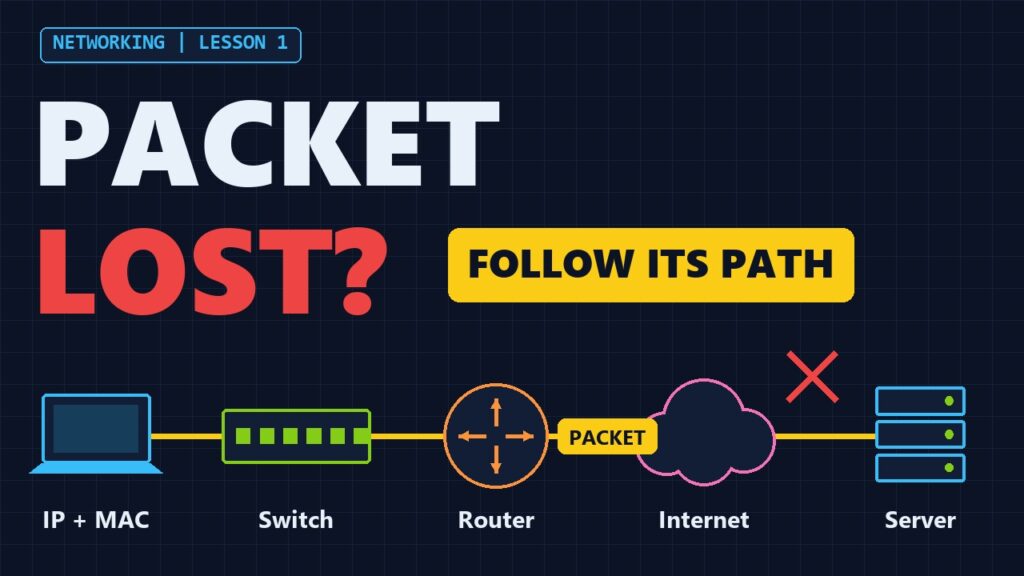
How a Network Works: IP and MAC Addresses, Switches, Routers and the Path of a Packet
Learn how a network really works: IP and MAC addresses, how a switch and ARP deliver frames in the LAN, how the router and…
tcpdump Tutorial: Capture and Read Network Traffic on Linux
Capture and read network traffic with tcpdump: key options, filters, a real TCP handshake explained line by line, and pcap files for Wireshark.
